
Anúncios
How to Activate Siri on Your iPhone and iPad

Discover Siri
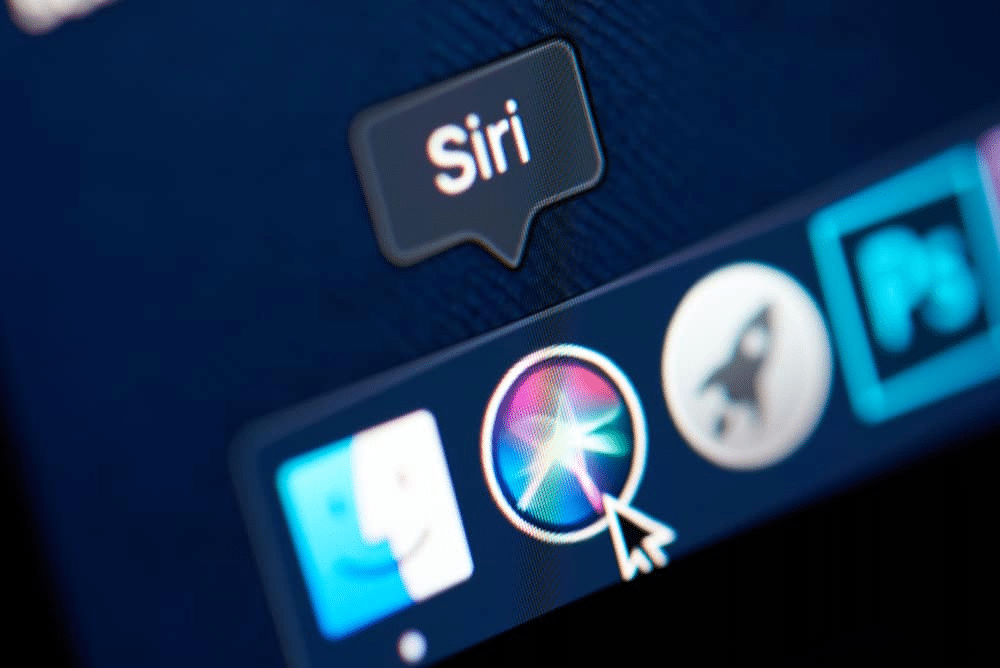
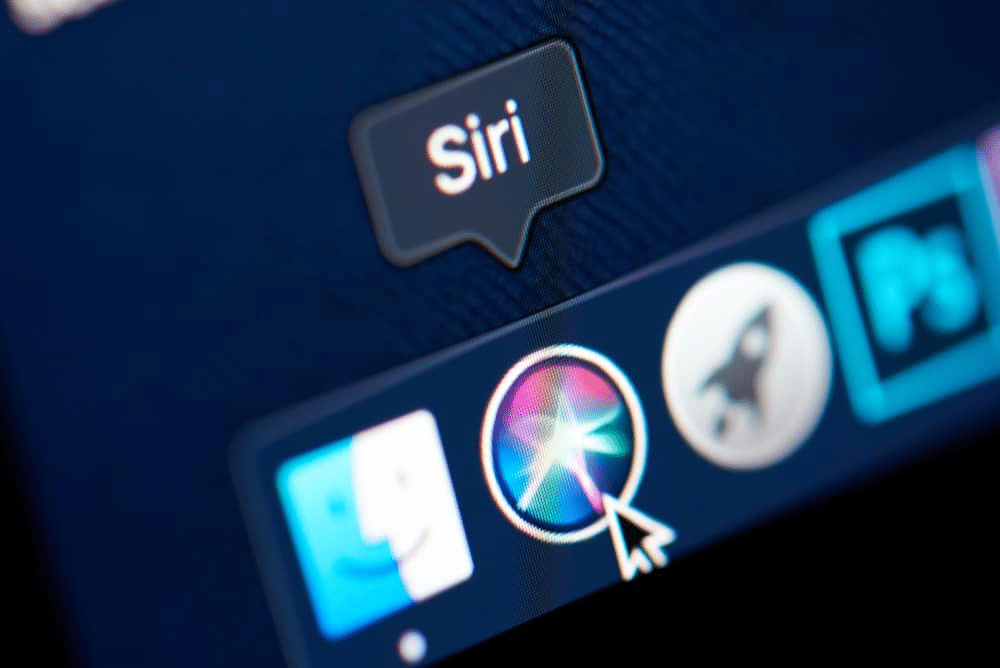
Siri has revolutionized the way we interact with our mobile devices, offering a seamless voice-controlled experience that makes everyday tasks simpler and faster. Whether you’re sending messages, setting reminders, or searching for information, activating Siri on your iPhone or iPad opens up a world of hands-free convenience that can transform your daily routine.
Understanding how to properly activate and configure Siri is essential for maximizing your device’s potential. From voice commands to customization options, this comprehensive guide will walk you through everything you need to know about getting Siri up and running on your mobile phone, ensuring you can harness the full power of Apple’s intelligent assistant. 🎯
Anúncios
What Makes Siri Your Perfect Digital Companion
Siri isn’t just another feature on your iPhone—it’s a sophisticated artificial intelligence designed to understand natural language and respond to your needs intelligently. Since its introduction in 2011, Siri has evolved significantly, becoming more intuitive, responsive, and capable of handling complex requests across multiple languages and dialects.
The beauty of Siri lies in its versatility. You can ask it to perform dozens of different tasks without ever touching your screen. From making phone calls and sending texts to controlling smart home devices and providing weather updates, Siri acts as your personal assistant that’s always ready to help. The system learns from your habits and preferences over time, making interactions increasingly personalized and efficient.
Anúncios
Modern versions of Siri can understand context better than ever before, allowing for more natural conversations. You can ask follow-up questions without repeating information, and Siri will understand what you’re referring to. This contextual awareness makes the assistant feel less robotic and more like an actual helpful companion. 💬
Checking If Your Device Supports Siri
Before diving into activation methods, it’s important to verify that your device supports Siri functionality. Most modern Apple devices come with Siri pre-installed, but older models might have limitations or require software updates to access the latest features.
Siri is available on iPhone 4s and later models, iPad Pro, iPad (3rd generation and later), iPad Air and later, iPad mini and later, and iPod touch (5th generation and later). If you own any of these devices running iOS 5 or later, you should be able to activate and use Siri without issues.
To check your iOS version, navigate to Settings > General > About, and look for the “Software Version” entry. If you’re running an older version, consider updating to the latest iOS release to enjoy the most advanced Siri capabilities, including improved voice recognition and expanded language support.
System Requirements for Optimal Performance
While Siri works on older devices, the experience is significantly enhanced on newer models with faster processors and better microphones. The iPhone 6s and later support “Hey Siri” activation without being plugged in, thanks to the integrated motion coprocessor that constantly listens for the wake phrase.
A stable internet connection is also crucial for Siri to function properly, as most voice processing happens on Apple’s servers. Wi-Fi provides the best experience, but cellular data works well too. Keep in mind that using Siri over cellular will consume data from your plan, though the amounts are typically minimal for standard requests.
Enabling Siri Through Your iPhone Settings
Activating Siri for the first time requires accessing your device’s settings menu. This process is straightforward and takes just a few moments to complete. Once enabled, you’ll have access to multiple methods for summoning your digital assistant whenever needed.
Start by opening the Settings app on your iPhone—the gray icon with gears that you’ll find on your home screen. Scroll down until you see “Siri & Search” (on older iOS versions, it might just say “Siri”). Tap this option to access all Siri-related settings and configuration options. ⚙️
Within the Siri & Search menu, you’ll encounter several toggle switches that control different aspects of Siri’s functionality. The first and most important is “Listen for ‘Hey Siri'” which enables voice activation. Toggle this switch to the on position (it should turn green), and your device will prompt you to set up the feature.
Setting Up “Hey Siri” Voice Recognition
When you enable “Hey Siri” for the first time, your iPhone will guide you through a brief training session. This process helps Siri learn to recognize your specific voice, which improves accuracy and prevents unauthorized users from accessing your device through voice commands.
During setup, you’ll be asked to say several phrases out loud, including “Hey Siri” itself, along with various common commands. Speak naturally and clearly, but don’t worry about being too formal—Siri is designed to understand conversational language. The training takes about a minute and significantly improves recognition accuracy.
Once training is complete, you can activate Siri anytime by simply saying “Hey Siri” followed by your request. Make sure you’re in a reasonably quiet environment for best results, as background noise can sometimes interfere with voice recognition.
Alternative Methods to Activate Siri
While “Hey Siri” offers hands-free convenience, there are several other ways to summon your virtual assistant, each suited to different situations and user preferences. Understanding all activation methods ensures you can access Siri regardless of your circumstances.
The most traditional method involves pressing and holding the Home button on older iPhone models (iPhone 8 and earlier). On devices with Face ID (iPhone X and later), press and hold the Side button (the power button on the right edge) instead. Hold the button until you see the Siri waveform appear at the bottom of your screen, then release and speak your command. 📱
For those using AirPods or other compatible Bluetooth headsets, you can activate Siri by tapping the earbuds or pressing the designated button on your headset. This is particularly useful when your phone isn’t easily accessible, such as during workouts or while driving.
Type to Siri Feature for Quiet Environments
Sometimes speaking out loud isn’t practical or appropriate—like in meetings, libraries, or public transportation. Apple recognized this and introduced “Type to Siri,” a text-based interface that maintains all of Siri’s functionality without requiring voice input.
To enable this feature, go to Settings > Accessibility > Siri, and turn on “Type to Siri.” Once activated, whenever you summon Siri using the button method, a keyboard will appear instead of the listening interface. You can type your questions and commands just as you would speak them, and Siri will respond accordingly.
This feature is especially valuable for users with speech difficulties or those who prefer visual communication. It also works excellently in noisy environments where voice recognition might struggle to understand your commands accurately.
Customizing Your Siri Experience
Beyond basic activation, Siri offers numerous customization options that let you tailor the assistant to your preferences and needs. These settings can significantly enhance your user experience and make interactions feel more natural and personalized.
In the Siri & Search settings menu, you’ll find options to change Siri’s voice gender, accent, and language. Apple offers multiple voice options for many languages, allowing you to select one that sounds most pleasant or natural to you. Different accents are available for English speakers, including American, British, Australian, Indian, Irish, and South African variants. 🗣️
The language setting is particularly important for multilingual users. You can set Siri to understand and respond in dozens of languages, from Arabic to Vietnamese. Some languages support dialect variations, so Spanish speakers can choose between Spanish (Spain), Spanish (Mexico), Spanish (Chile), and other regional options.
Voice Feedback and Volume Control
You can also control when and how Siri speaks responses. The “Voice Feedback” option offers three settings: “Always On” (Siri always speaks responses), “Control with Ring Switch” (Siri remains silent when your phone is on silent mode), and “Hands-Free Only” (Siri only speaks when you’re using “Hey Siri” or connected to Bluetooth devices).
Adjusting Siri’s volume is simple—when Siri is speaking, use your device’s volume buttons to increase or decrease the level. This setting is independent of your phone’s general volume, so you can have Siri speak louder or softer than your music or ringtones.
Troubleshooting Common Siri Activation Issues
Occasionally, you might encounter problems when trying to activate or use Siri. Understanding common issues and their solutions can save time and frustration, ensuring your voice assistant remains readily available when needed.
If “Hey Siri” isn’t responding, first verify that the feature is enabled in settings. Also, check that your device isn’t in Low Power Mode, which disables “Hey Siri” on some older iPhone models to conserve battery. Restarting your iPhone often resolves temporary glitches that might prevent voice activation from working properly. 🔧
Microphone issues can also interfere with Siri functionality. Remove any cases or screen protectors that might be blocking the microphone openings. Test your microphone by recording a voice memo—if the recording sounds muffled or doesn’t pick up your voice, there might be a hardware issue requiring professional attention.
Network and Restriction Problems
Since Siri requires internet connectivity, poor network conditions can cause activation problems or slow responses. Check your Wi-Fi or cellular connection and try switching between them if one isn’t working well. You can test connectivity by opening a web browser or another internet-dependent app.
Screen Time restrictions can also disable Siri. If you or someone else set up parental controls on your device, Siri might be restricted. Navigate to Settings > Screen Time > Content & Privacy Restrictions > Allowed Apps, and ensure Siri & Dictation is turned on.
Maximizing Siri’s Potential on Your iPhone
Once Siri is activated and configured, learning to use it effectively can dramatically improve your productivity and device experience. The assistant can handle hundreds of different commands across various categories, from communication and entertainment to productivity and information retrieval.
Start by exploring basic commands like “Set a timer for 10 minutes,” “What’s the weather tomorrow,” or “Call Mom.” As you become comfortable with simple requests, expand to more complex ones like “Remind me to email John when I get to work” or “Show me Italian restaurants nearby with good reviews.” 🍝
Siri integrates deeply with native iOS apps and many third-party applications. You can ask Siri to play specific songs on Apple Music, add items to your Notes app, create calendar events, send messages through WhatsApp, or request rides through Uber—all without opening the respective apps.
Creating Shortcuts for Personalized Commands
The Shortcuts app takes Siri functionality to another level by allowing you to create custom voice commands for complex multi-step actions. You can design shortcuts that perform sequences of tasks with a single phrase, like “I’m going home” triggering navigation, sending an ETA text to family, and adjusting your smart home temperature.
Pre-built shortcuts are available in the Shortcuts Gallery, covering common scenarios like morning routines, workout tracking, and expense logging. You can also create your own from scratch, combining actions from multiple apps into seamless automated workflows activated by your custom Siri phrase.
Privacy Considerations When Using Siri
Understanding how Siri handles your data is important for making informed decisions about which features to enable. Apple has implemented several privacy protections, but users should be aware of what information is collected and how it’s used.
When you use Siri, your voice queries are sent to Apple’s servers for processing. Apple doesn’t associate this information with your Apple ID by default—instead, a random identifier is used. You can review and delete your Siri interaction history by going to Settings > Siri & Search > Siri & Dictation History > Delete Siri & Dictation History. 🔒
The “Hey Siri” feature means your device is always listening for the activation phrase, which concerns some users. However, the listening happens locally on your device using specialized hardware, and nothing is transmitted to Apple until the wake phrase is detected. You can disable this feature anytime if you prefer using button activation only.
Managing Siri Suggestions and Learning
Siri learns from how you use your device to provide better suggestions and predictions. This includes analyzing your app usage patterns, contact interactions, and location data. While this enhances functionality, you can limit what Siri learns by adjusting settings for individual apps in the Siri & Search menu.
For each installed app, you can toggle whether Siri can learn from that app, show suggestions from it, or suggest shortcuts. This granular control lets you balance convenience with privacy according to your comfort level and specific concerns about data usage.
Siri Across Your Apple Ecosystem
One of Siri’s greatest strengths is its consistency across all Apple devices. Once you’ve set up Siri on your iPhone, you can enjoy similar functionality on your iPad, Mac, Apple Watch, HomePod, and even Apple TV, creating a unified voice control experience throughout your digital life.
Your Siri preferences and training sync across devices signed into the same Apple ID through iCloud. This means you don’t need to retrain voice recognition on each device—Siri will already know your voice and preferences. Commands work similarly across platforms, though device-specific capabilities naturally vary based on hardware features. 🌐
The continuity between devices enables powerful cross-device workflows. You can start a task on your iPhone and continue it on your iPad or Mac. For example, ask Siri on your iPhone to open a specific website, and through Handoff, you can immediately pick up where you left off on your Mac’s Safari browser.
Advanced Siri Commands Worth Learning
Moving beyond basic queries unlocks Siri’s true potential. Advanced commands let you control complex device functions, access deeper information, and integrate multiple actions into single requests that save considerable time and effort.
Try commands like “Show me photos from last summer in New York” to search your photo library with natural language. Ask “What flights are overhead?” while pointing your device skyward to identify aircraft. Say “Flip a coin” or “Roll a dice” when making decisions. Request “Read my latest email” while driving to stay updated hands-free.
Siri can perform calculations, convert units, translate phrases, identify songs playing nearby, provide sports scores and schedules, track flights, find your parked car, control HomeKit-enabled smart home devices, and much more. Experimenting with different commands helps you discover capabilities you didn’t know existed. ✨
Using Siri for Accessibility
Siri serves as a powerful accessibility tool for users with physical limitations, visual impairments, or other disabilities. Voice control eliminates the need for precise touch interactions, making iPhones accessible to users who might otherwise struggle with traditional interfaces.
Combined with VoiceOver (iOS’s screen reader), Siri can help visually impaired users navigate their devices entirely through audio. Commands like “Turn on VoiceOver,” “Increase screen brightness,” or “Enable zoom” let users adjust accessibility settings without navigating complex menus. Voice control can operate virtually any aspect of iOS, from launching apps to filling out forms.
Staying Updated With Siri’s Evolution
Apple continuously improves Siri with each iOS update, adding new capabilities, languages, and integrations. Staying current with these updates ensures you benefit from the latest features and performance enhancements that make the assistant increasingly useful.
Recent updates have brought on-device processing for certain requests, improving speed and privacy. Neural voice generation makes Siri sound more natural. Expanded language support reaches more users worldwide. Integration with third-party apps deepens with each release, allowing Siri to control more services beyond Apple’s ecosystem.
To stay informed about new Siri features, check Apple’s website after major iOS releases, or explore the “Tips” app on your iPhone, which regularly highlights new capabilities. Community forums and Apple support documents also provide valuable information about lesser-known features and creative ways to use Siri effectively. 📲
Activating Siri on your mobile phone is just the beginning of a journey toward more efficient, hands-free device interaction. Whether you’re a new iPhone owner discovering voice assistance for the first time or a longtime user looking to deepen your understanding, mastering Siri activation and customization empowers you to make the most of your Apple device.
