
Anúncios
Activate Siri on Your Device
Activate Siri Now
In today’s fast-paced digital world, voice assistants have become an integral part of our daily routines. Siri, Apple’s intelligent personal assistant, stands out as one of the most sophisticated and user-friendly voice-activated helpers available. Whether you’re new to the Apple ecosystem or simply haven’t explored this powerful feature yet, activating Siri on your device can transform how you interact with your phone, making everyday tasks quicker and more convenient. 🎯
From setting reminders and sending messages to controlling smart home devices and finding information, Siri offers a hands-free experience that enhances productivity and accessibility. Understanding how to properly activate and configure this feature is the first step toward unlocking a world of voice-controlled possibilities that can simplify your digital life in ways you might not have imagined.
Anúncios
Why Activating Siri Makes Your Life Easier
Before diving into the technical steps, it’s important to understand why activating Siri should be a priority for any iPhone, iPad, or Apple device user. This virtual assistant isn’t just a novelty feature—it’s a practical tool designed to save time and enhance accessibility for users of all ages and abilities.
Siri can perform hundreds of different tasks through simple voice commands. Imagine being able to send a text message while driving without taking your hands off the wheel, or setting multiple timers while cooking without touching your phone with messy hands. These scenarios illustrate just a fraction of what becomes possible once you activate this intelligent assistant. 📱
Anúncios
Additionally, Siri continues to evolve with each iOS update, gaining new capabilities and better understanding of natural language. The assistant can now recognize your voice specifically, provide personalized suggestions based on your habits, and integrate seamlessly with third-party applications. This means that activating Siri today gives you access to features that will only become more powerful over time.
Checking Your Device Compatibility
Not all Apple devices support every Siri feature, so it’s essential to verify that your device is compatible before attempting activation. Generally, Siri is available on iPhone 4s and later models, iPad Pro, iPad (3rd generation and later), iPad Air and later, iPad mini and later, and iPod touch (5th generation and later).
The most advanced Siri features, including “Hey Siri” hands-free activation, require newer devices with specific processors. For instance, always-on “Hey Siri” without being plugged into power requires an iPhone 6s or later, iPad Pro, or newer iPad models. If you’re unsure about your device’s capabilities, you can check by going to Settings and looking for the Siri & Search option—if it’s there, your device supports at least basic Siri functionality. ✅
Activating Siri Through Settings: Step-by-Step Guide
The most straightforward method to activate Siri is through your device’s Settings menu. This approach gives you complete control over all Siri-related options and allows you to customize the experience to match your preferences.
Accessing the Siri Configuration Menu
Begin by unlocking your iPhone or iPad and locating the Settings app, which appears as a gray icon with gears. Tap to open it, then scroll down until you find “Siri & Search.” On older iOS versions, this might simply be labeled “Siri.” Tap this option to enter the Siri configuration screen where all the magic happens.
Once inside, you’ll see several toggle switches that control different aspects of how Siri functions. The main switch at the top, typically labeled “Listen for ‘Hey Siri'” or “Press Side Button for Siri” (or Home Button on older devices), is your primary activation control. Toggle this switch to the on position—it will turn green when active. 🔧
Setting Up “Hey Siri” Voice Recognition
When you activate the “Hey Siri” feature for the first time, your device will guide you through a short training process. This step is crucial because it teaches Siri to recognize your specific voice, preventing accidental activations from other people and ensuring more accurate responses when you speak.
During the setup, you’ll be asked to say several phrases out loud, such as “Hey Siri,” “Hey Siri, send a message,” and “Hey Siri, what’s the weather like today?” Speak naturally and clearly in the same tone and volume you’d typically use when talking to your device. The training process takes less than a minute and significantly improves Siri’s responsiveness to your commands.
If you live with family members who also use Apple devices, each person should complete this training on their own device. This personalization ensures that your iPhone responds primarily to your voice, though it’s worth noting that in noisy environments or with similar-sounding voices, occasional cross-activation might still occur.
Configuring Side Button or Home Button Activation
Beyond voice activation, Siri can also be summoned by pressing and holding a physical button on your device. On iPhone X and later models with Face ID, this is the side button on the right edge of the phone. On older iPhones with a Home button, you’ll press and hold that central button instead.
In the Siri & Search settings menu, ensure the “Press Side Button for Siri” (or “Press Home for Siri”) toggle is enabled. This provides an alternative activation method that’s particularly useful in public spaces where you might not want to speak aloud, or in loud environments where voice recognition might be challenging. 🎙️
Language and Voice Selection Options
One of Siri’s most impressive features is its multilingual capability. The assistant can understand and respond in dozens of languages, with various accent and dialect options within each language. Customizing these settings ensures you get the most natural and comprehensible experience possible.
Within the Siri & Search settings, tap on “Language” to see the full list of available options. You’ll find everything from English (with variants like Australian, British, Indian, and American) to Arabic, French, German, Japanese, Mandarin Chinese, and many others. Select the language you’re most comfortable speaking, keeping in mind that Siri’s comprehension and feature availability may vary slightly across different languages.
Below the language option, you’ll find “Siri Voice,” where you can choose the accent, gender, and vocal characteristics of Siri’s responses. Recent iOS updates have expanded these options significantly, offering multiple voice options for most major languages. Experiment with different voices to find one that sounds pleasant and easy to understand. Some users find that certain voices enunciate more clearly for specific tasks like navigation directions or reading long texts. 🗣️
Understanding Siri Suggestions and Privacy Settings
Modern versions of Siri do more than just respond to commands—they proactively offer suggestions based on your usage patterns. These suggestions appear in various places throughout iOS, including the lock screen, search screen, and within apps. While incredibly convenient, these features do require some data processing, which brings us to an important topic: privacy.
Managing Siri’s Learning Capabilities
In the Siri & Search settings, you’ll notice options like “Suggestions in Search,” “Suggestions in Look Up,” and “Suggestions on Lock Screen.” These toggles control where and how Siri presents personalized suggestions. For example, when enabled, Siri might suggest calling someone you frequently contact at specific times, or recommend an app you typically use when you arrive at certain locations.
These features work by analyzing patterns in your device usage—completely on-device in most cases, meaning the data doesn’t leave your iPhone. However, some information may be processed through Apple’s servers in an anonymized format to improve Siri’s general functionality. If privacy is a paramount concern, you can disable these suggestions individually while still keeping basic Siri activation enabled.
Controlling What Apps Can Access Siri
Scroll down in the Siri & Search settings, and you’ll see a list of all apps installed on your device. Each app has its own set of Siri-related permissions, including whether it can use Siri & Suggestions, show content in Search, and suggest shortcuts. This granular control lets you customize exactly how Siri interacts with each application. 🔒
For apps you use frequently, enabling these permissions can dramatically enhance functionality. For instance, allowing your messaging apps to integrate with Siri enables you to send messages by voice, while enabling it for your music app lets you request specific songs or playlists. Conversely, for apps you rarely use or those that might contain sensitive information, you can restrict Siri access entirely.
Testing Your Siri Activation
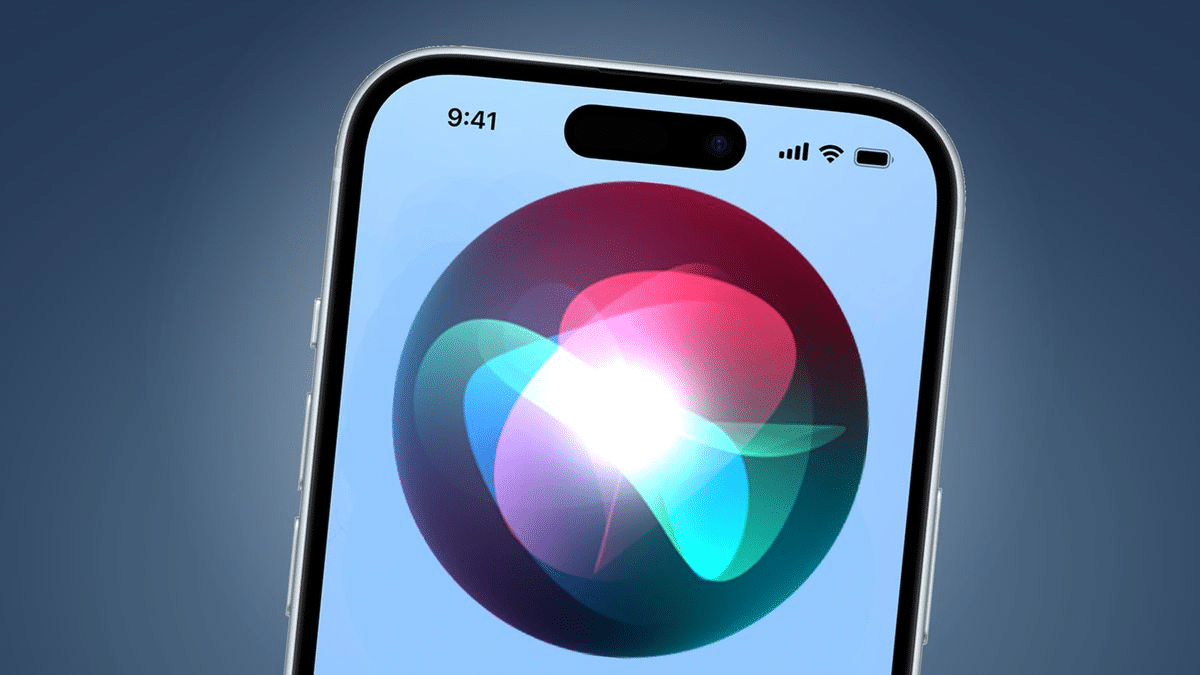
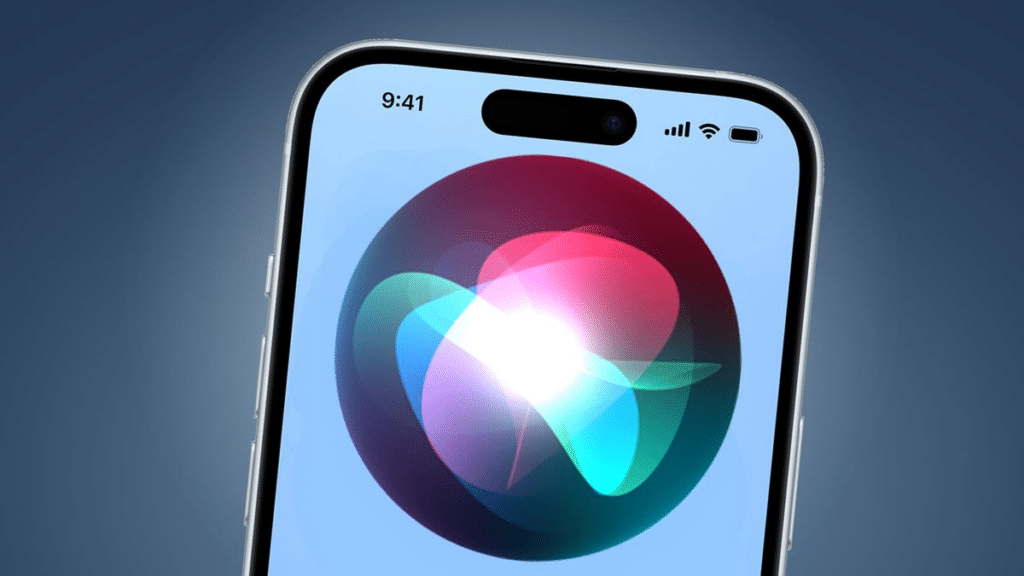
Once you’ve configured all the settings, it’s time to test that everything works correctly. Start with a simple voice test: if you’ve enabled “Hey Siri,” simply say “Hey Siri” in a clear voice while your device is unlocked. You should see the familiar Siri interface appear with colorful waveforms at the bottom of the screen, indicating that Siri is listening.
Try asking a simple question like “What time is it?” or “What’s the weather today?” Siri should respond promptly with the relevant information. If there’s no response, check that your microphone isn’t obstructed and that you’re in a reasonably quiet environment for the initial test.
Next, test the button activation method. Press and hold either the side button or Home button (depending on your device model) until the Siri interface appears. This method should work even in situations where voice activation doesn’t, such as when your device is face-down or in a noisy environment. ✨
Troubleshooting Common Activation Issues
Despite following all the steps correctly, you might occasionally encounter issues with Siri activation. Understanding common problems and their solutions can save considerable frustration and help you get the most from this powerful feature.
Siri Doesn’t Respond to “Hey Siri”
If voice activation isn’t working, first verify that the feature is actually enabled in Settings > Siri & Search. Next, check if Low Power Mode is activated—this mode disables “Hey Siri” to conserve battery. You can check this in Settings > Battery or by looking for the yellow battery icon in the status bar.
Another common culprit is a dirty or covered microphone. The primary microphone for Siri on most iPhones is located at the bottom edge of the device. Ensure this area is clean and unobstructed by cases or debris. Additionally, try retraining Siri to recognize your voice by turning “Hey Siri” off and then back on, which will prompt you through the setup process again. 🔍
Siri Activates Too Easily or Not Easily Enough
Finding the right balance for voice activation sensitivity can be tricky. If Siri activates from other voices or background noise, consider retraining the voice recognition in a quieter environment, speaking more distinctly during setup. This helps Siri better distinguish your voice from ambient sounds.
Conversely, if you find yourself needing to shout or repeat the wake phrase multiple times, ensure you’re pronouncing “Hey Siri” clearly as two distinct words with emphasis on “Siri.” Also, check that any protective cases or screen protectors aren’t interfering with the device’s microphones.
Siri Doesn’t Understand Your Language or Accent
Language comprehension issues usually stem from a mismatch between your accent and the language setting you’ve selected. In Siri settings, try switching to a different variant of your language. For example, if you speak English with a British accent but have selected American English, switching to British English can significantly improve recognition accuracy.
Remember that Siri’s language capabilities continue to improve with each iOS update, so keeping your device updated to the latest software version ensures you have access to the most advanced language processing algorithms available. 🌍
Advanced Siri Activation Features
Beyond basic activation, iOS offers several advanced features that can enhance how you interact with Siri and make the assistant even more integrated into your daily workflow.
Type to Siri When Voice Isn’t Practical
In situations where speaking isn’t appropriate—like during meetings, in libraries, or late at night—you can enable “Type to Siri” functionality. This feature, found in Settings > Accessibility > Siri, allows you to type your questions and commands instead of speaking them aloud.
When enabled, activating Siri through the button method will bring up a keyboard instead of the listening interface. You can type your request, and Siri will respond normally, either through on-screen text or voice (which you can control through your device’s volume settings). This makes Siri accessible in virtually any situation, regardless of noise level or social appropriateness of speaking. ⌨️
Allowing Siri When Locked
For maximum convenience, you can configure Siri to respond even when your device is locked. This setting, found in Settings > Siri & Search under “Allow Siri When Locked,” enables hands-free functionality without needing to unlock your phone first.
However, this convenience comes with security considerations. When enabled, anyone can activate Siri on your locked device and potentially access certain information like recent messages, make calls, or control smart home devices. If you’re concerned about privacy and security, consider disabling this option, which will require device unlock (via Face ID, Touch ID, or passcode) before Siri can be used.
Creating Custom Shortcuts for Complex Tasks
iOS includes a powerful Shortcuts app that works seamlessly with Siri, allowing you to create custom voice commands for complex multi-step tasks. While this goes beyond simple activation, it’s worth mentioning as it dramatically expands what Siri can do once activated.
For example, you could create a “Good Morning” shortcut that, when you say “Hey Siri, good morning,” automatically turns off your alarm, reads your calendar events, provides a weather report, and starts playing your favorite morning playlist. These custom automations make Siri activation even more valuable, transforming your device into a truly personalized assistant. 🚀
Siri Activation on Different Apple Devices
While this article primarily focuses on activating Siri on iPhones, it’s worth noting that the process is similar across other Apple devices, with minor variations based on hardware differences.
Activating Siri on iPad
iPads follow essentially the same activation process as iPhones. Navigate to Settings > Siri & Search and enable the desired activation methods. On iPad models without a Home button, you’ll press and hold the top button instead of a side button. “Hey Siri” works identically to iPhone, though you may want to retrain the voice recognition specifically for your iPad, especially if you use it in different locations or situations than your phone.
Siri on Apple Watch
On Apple Watch, Siri can be activated by raising your wrist and saying “Hey Siri,” pressing and holding the Digital Crown, or simply raising your wrist and speaking (on watchOS 5 and later, without needing to say “Hey Siri”). Configuration is done through the Watch app on your iPhone under Settings > Siri. The watch version of Siri is particularly useful for quick tasks when your phone isn’t accessible. ⌚
Using Siri on Mac
Mac computers running macOS Sierra and later include Siri integration. Activate it by clicking the Siri icon in the menu bar or Dock, using the keyboard shortcut (typically holding Command + Space), or saying “Hey Siri” on compatible MacBook models with the T2 chip or Apple Silicon. Configure settings through System Preferences > Siri. Desktop Siri excels at file management, system controls, and information lookup while you’re working.
Making the Most of Your Activated Siri
Now that Siri is activated and properly configured, the journey is just beginning. The true value of this assistant emerges as you integrate it into your daily routines and discover the countless ways it can simplify tasks that would otherwise require multiple taps and swipes.
Start by using Siri for simple, frequent tasks like setting timers, creating reminders, and checking the weather. As you become comfortable with these basic interactions, gradually expand to more complex commands like composing and sending messages, controlling smart home devices, making calculations, converting units, or finding information on the web.
Remember that Siri learns and improves over time, both through Apple’s general improvements to the system and through its personalization to your specific usage patterns. The more you use it, the better it becomes at predicting your needs and providing relevant suggestions. What might feel awkward or slow initially will soon become second nature, potentially saving you hours of cumulative time over the months and years ahead. 🎯
Perhaps most importantly, activating Siri makes your device more accessible. For users with visual impairments, motor difficulties, or situations where hands-free operation is necessary (like while driving), voice control isn’t just convenient—it’s essential. By taking the time to properly activate and configure Siri, you’re not just adding a feature; you’re fundamentally expanding how you can interact with your technology.
The voice assistant landscape continues to evolve rapidly, with each iOS update bringing new capabilities, better language understanding, and deeper integration with third-party services. By activating Siri today, you’re positioning yourself to take advantage of these ongoing improvements automatically, ensuring your device remains at the cutting edge of voice-controlled technology without requiring additional setup in the future.
