
Anúncios
Unlock the Power of Voice Control on Your Device

Activate Siri Now
In today’s fast-paced digital world, voice assistants have transformed how we interact with our smartphones. Siri, Apple’s revolutionary voice-controlled assistant, stands at the forefront of this technological evolution, offering users an intuitive way to accomplish tasks, get information, and control their devices without lifting a finger. 🎙️
Whether you’re driving, cooking, or simply want a more efficient way to navigate your iPhone or iPad, activating and mastering Siri can significantly enhance your mobile experience. This comprehensive guide will walk you through everything you need to know about bringing Siri to life on your device.
Anúncios
Understanding What Makes Siri Your Digital Companion
Siri represents more than just a voice recognition system—it’s an intelligent assistant designed to understand context, learn from your habits, and provide personalized responses. Since its introduction in 2011, Siri has evolved into a sophisticated AI capable of handling complex requests, from setting reminders to controlling smart home devices.
The beauty of Siri lies in its accessibility. Apple has designed multiple activation methods to ensure that regardless of your situation or preference, you can always summon your digital helper. Understanding these various activation options allows you to choose the method that best fits your lifestyle and needs.
Anúncios
Preparing Your iPhone for Siri Activation 📱
Before diving into activation methods, you’ll need to ensure your device is properly configured. The initial setup process is straightforward but essential for optimal performance.
First, navigate to your Settings app—that gray icon with gears that you’ve probably tapped thousands of times. Once inside, scroll down until you find “Siri & Search.” This dedicated section houses all the controls and customization options for your voice assistant.
Within this menu, you’ll encounter several toggle switches that determine how Siri responds to your commands. Each option serves a specific purpose, and understanding them helps you tailor the experience to your preferences. The main toggles include “Listen for ‘Hey Siri,'” “Press Side Button for Siri” (or “Press Home Button for Siri” on older models), and “Allow Siri When Locked.”
Setting Up Voice Recognition for Personalized Response
One of Siri’s most impressive features is its ability to recognize your specific voice. This security measure ensures that only you can access certain information through voice commands, even when your phone is locked.
When you first enable the “Hey Siri” feature, your iPhone will guide you through a brief training session. During this process, you’ll be asked to repeat several phrases so Siri can learn the unique characteristics of your voice—your pitch, tone, and speaking patterns. This takes less than two minutes but significantly improves accuracy and security.
Speak naturally during this setup phase. Don’t try to enunciate excessively or use an artificial tone, as this might confuse the voice recognition algorithm. The more authentic your training samples, the better Siri will perform in real-world situations.
The Classic Button Press Method ⚡
For those who prefer tactile interaction or find themselves in environments where speaking to your phone isn’t practical, the button press method offers a reliable alternative.
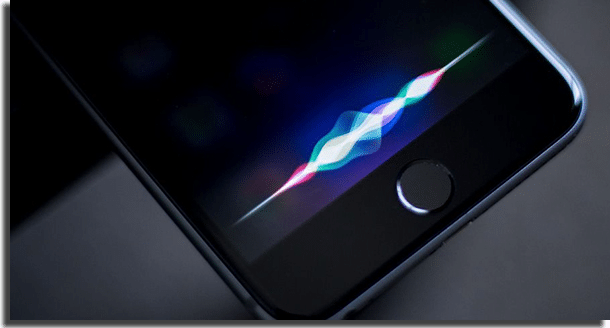
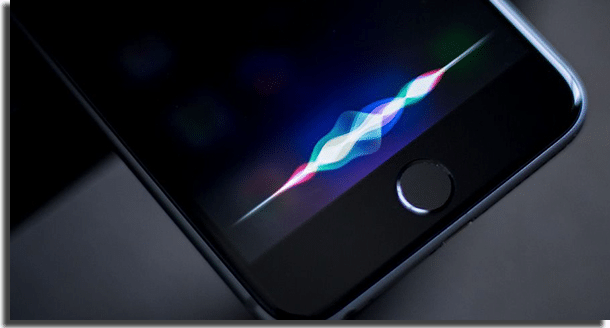
On iPhones with Face ID (iPhone X and newer), you’ll use the side button—that’s the power button located on the right edge of your device. Simply press and hold this button for about one second, and Siri will activate, indicated by a colorful waveform at the bottom of your screen.
For older iPhone models featuring Touch ID (iPhone 8 and earlier), the Home button serves this purpose. Press and hold the circular button below the screen until you hear the familiar Siri chime or see the interface appear.
This method works regardless of your voice recognition settings and functions even in noisy environments where “Hey Siri” might struggle to hear you. It’s particularly useful during meetings, in libraries, or when you’re trying to be discreet.
Customizing Button Activation Settings
Apple understands that accidental activations can be frustrating. That’s why they’ve built in customization options for button-based Siri summoning.
Within the Siri & Search settings, you can toggle the button activation on or off entirely. Some users prefer to rely exclusively on voice activation, while others want both options available. There’s no wrong choice—it’s entirely about what works for your usage patterns.
Additionally, you can adjust how long you need to hold the button before Siri activates. This helps prevent accidental triggers when you’re simply trying to lock your screen or take a screenshot.
Mastering “Hey Siri” Voice Activation 🗣️
The “Hey Siri” feature represents the pinnacle of hands-free convenience. Once enabled, your iPhone constantly listens for this specific wake phrase, ready to spring into action at a moment’s notice.
To enable this feature, return to Settings > Siri & Search and toggle on “Listen for ‘Hey Siri.'” If this is your first time activating the feature, your iPhone will immediately launch the voice training sequence mentioned earlier.
Once configured, simply say “Hey Siri” in a normal conversational tone from anywhere in the room (as long as you’re within reasonable proximity to your device). You don’t need to shout, and in fact, speaking naturally yields better results than over-enunciating.
The microphones on modern iPhones are remarkably sensitive and can detect your voice even when music is playing or when there’s moderate background noise. However, extremely loud environments like concerts or construction sites may pose challenges.
Optimizing Voice Recognition Accuracy
If Siri seems to struggle with understanding your “Hey Siri” command, several factors might be at play. Accent variations, speech patterns, and even ambient noise can affect recognition rates.
Consider retraining Siri by toggling off “Listen for ‘Hey Siri,'” waiting a few seconds, then toggling it back on. This prompts a fresh training session where you can provide new voice samples. Try speaking from different distances and angles during this process to give Siri a more comprehensive understanding of how your voice sounds in various scenarios.
Another pro tip: ensure your device’s microphones aren’t obstructed by cases or screen protectors. Some protective accessories, particularly those with full-body coverage, can muffle sound input and reduce Siri’s ability to hear you clearly.
Activating Siri with AirPods and Headphones 🎧
Apple has seamlessly integrated Siri activation into their audio accessories, making voice control accessible even when your iPhone is tucked away in a pocket or bag.
With AirPods (second generation or later) and AirPods Pro, you can enable “Hey Siri” functionality that works independently of your iPhone’s microphones. Simply say the wake phrase, and your AirPods will capture your voice and transmit the command to your device.
For AirPods that don’t support “Hey Siri,” or for users who prefer physical controls, you can activate Siri by customizing the double-tap or press-and-hold gesture. Navigate to Settings > Bluetooth, tap the “i” icon next to your AirPods, and select your preferred activation method under the customization options.
Traditional wired headphones with inline controls also offer Siri access. Press and hold the center button on your earphone remote—the same button you’d press once to pause music—and Siri will activate after a second or two.
CarPlay Integration for Safe Driving 🚗
When you’re behind the wheel, Siri becomes an essential safety tool, allowing you to keep your hands on the wheel and eyes on the road while still accessing your phone’s capabilities.
If your vehicle supports CarPlay, Siri activation is built directly into the experience. Most CarPlay systems feature a voice control button on the steering wheel or dashboard interface that summons Siri instantly. Alternatively, if your car’s entertainment system supports it, “Hey Siri” works through the vehicle’s microphone array.
This integration allows you to send messages, make calls, get directions, and control music without ever glancing at your phone. It’s not just convenient—it’s potentially life-saving, as it minimizes driver distraction.
To set up CarPlay, connect your iPhone to your vehicle via USB or wirelessly (if your car supports wireless CarPlay). The connection typically happens automatically once initially configured, and Siri becomes available immediately through your car’s interface.
Troubleshooting Common Activation Issues 🔧
Even with Apple’s typically seamless user experience, you might occasionally encounter problems activating Siri. Understanding common issues and their solutions can save you frustration.
If “Hey Siri” isn’t responding, first verify that the feature is enabled in Settings. It’s surprisingly easy to accidentally toggle it off, especially if you’ve been adjusting other settings. Also check that your device has an active internet connection—while some Siri functions work offline, the assistant requires connectivity for most tasks.
Battery optimization features might disable “Hey Siri” when your iPhone enters Low Power Mode. This is intentional, as constantly listening for the wake phrase consumes battery resources. If you need Siri while conserving battery, use the button press method instead.
Language and Region Considerations
Siri’s performance can vary based on your language and region settings. While the assistant supports dozens of languages and dialects, some features work better in certain regions due to licensing agreements and service availability.
To adjust Siri’s language, go to Settings > Siri & Search > Language. Select your preferred option from the list. Keep in mind that changing languages will require you to retrain Siri’s voice recognition, as the wake phrase and command structure differ across languages.
Your region setting (found under Settings > General > Language & Region) also affects Siri’s capabilities. Certain features like Apple Maps directions, local business information, and even some third-party app integrations depend on regional availability.
Advanced Activation Techniques for Power Users ⚙️
Once you’ve mastered the basics, several advanced techniques can further streamline your Siri experience and make activation even more convenient.
Accessibility features offer alternative activation methods for users with physical limitations. Back Tap, found under Settings > Accessibility > Touch, allows you to activate Siri by double-tapping or triple-tapping the back of your iPhone. This hands-free-ish method works even when wearing gloves or when button presses are difficult.
Voice Control, a separate accessibility feature, can be configured to include custom Siri activation commands. This allows you to create personalized phrases beyond “Hey Siri” that trigger the assistant, though this requires more extensive setup.
Shortcuts Integration for Custom Activation Flows
Apple’s Shortcuts app enables you to create custom automation that includes Siri activation as part of more complex workflows. For instance, you could create a shortcut that activates when you arrive at a specific location, automatically prompting Siri to read your messages or provide a briefing.
While this doesn’t change how you initially activate Siri, it demonstrates the assistant’s flexibility and how it can be integrated into broader automation strategies that enhance your daily routine.
Privacy and Security Considerations 🔒
Activating Siri involves granting your device permission to listen for voice commands, which naturally raises privacy questions. Apple has implemented several safeguards to protect your data while still delivering a responsive assistant experience.
When “Hey Siri” is enabled, your iPhone processes the wake phrase locally on the device using specialized hardware. No audio is sent to Apple’s servers until after you’ve spoken the trigger phrase and Siri has activated. This means your device isn’t constantly uploading everything it hears—it’s simply listening for a specific audio pattern.
You can further enhance privacy by disabling “Allow Siri When Locked” in the Siri & Search settings. This prevents anyone from accessing certain information through Siri commands without first unlocking your device with Face ID, Touch ID, or your passcode.
Apple also allows you to delete your Siri interaction history. Navigate to Settings > Siri & Search > Siri & Dictation History, and select “Delete Siri & Dictation History” to remove recordings and transcripts associated with your requests.
Type to Siri: A Silent Alternative 💬
For situations where voice activation isn’t possible or preferred, Apple offers “Type to Siri”—a feature that transforms the voice assistant into a text-based interface.
Enable this feature under Settings > Accessibility > Siri by toggling on “Type to Siri.” Once activated, whenever you would normally speak to Siri (after button press or “Hey Siri”), a keyboard appears instead, allowing you to type your request.
This proves invaluable during meetings, in quiet environments like libraries, or when you have speech difficulties. It maintains all of Siri’s functionality while eliminating the need for voice input. You can still activate Siri using the same methods—button press or “Hey Siri”—but your interaction happens through text rather than speech.
Maximizing Your Activation Experience 🌟
With Siri properly activated and configured, you’re ready to explore the full potential of Apple’s voice assistant. The key to getting the most value lies in understanding which activation method suits each situation.
Use “Hey Siri” when you’re hands-free—cooking, exercising, or driving. Rely on button presses in public spaces where speaking to your phone might feel awkward or disruptive. Leverage Type to Siri when discretion is paramount or when ambient noise makes voice recognition unreliable.
Remember that Siri becomes more helpful the more you use it. The assistant learns from your interactions, improving its understanding of your preferences, frequently contacted people, and common requests. Don’t hesitate to experiment with different command phrasings and activation methods to discover what works best for your workflow.
Regular practice transforms Siri from a novelty into an indispensable tool. Start with simple commands—setting timers, checking weather, or playing music—then gradually incorporate more complex requests as you become comfortable with the interaction patterns.
Embracing Voice-First Interaction on Your Terms
Activating Siri represents more than just enabling a feature on your iPhone—it’s about embracing a more natural, efficient way of interacting with technology. Whether you prefer the convenience of voice activation, the precision of button presses, or the discretion of typed commands, Apple has designed Siri to accommodate your preferences.
The methods outlined in this guide provide multiple pathways to the same destination: seamless access to a powerful digital assistant that can simplify daily tasks, provide information instantly, and help you stay connected without constantly staring at a screen. As voice technology continues to evolve, Siri will only become more capable and integrated into your digital ecosystem.
Take the time to explore each activation method, customize settings to match your lifestyle, and discover which features provide the most value for your specific needs. The investment in learning these activation techniques pays dividends in saved time, improved productivity, and a more enjoyable smartphone experience overall. Your voice is powerful—now your iPhone is listening, ready to respond, and waiting to assist. ✨
