
Anúncios
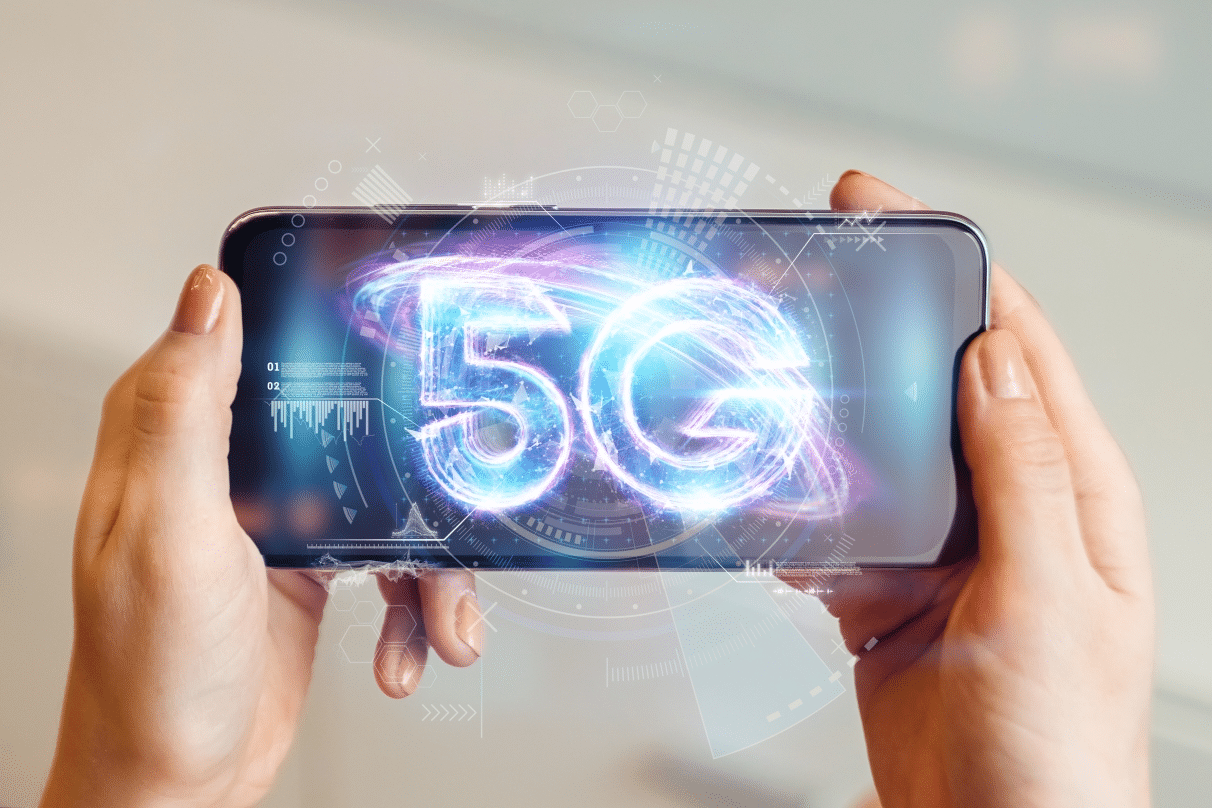
5G technology is transforming mobile connectivity worldwide, offering unprecedented speeds and enhanced performance. Activating it on your device unlocks a new dimension of digital experiences. Activating 5G on Mobile Phones: A Quick Guide.


The fifth generation of wireless technology represents a significant leap forward in mobile communications. With download speeds reaching up to 10 Gbps and ultra-low latency, 5G enables seamless streaming, faster downloads, and improved connectivity for smart devices. However, many users find their phones still operating on 4G LTE despite having 5G-capable devices.
Anúncios
Understanding how to properly activate and optimize 5G on your smartphone can dramatically improve your mobile experience. Whether you’re streaming high-definition content, engaging in video calls, or gaming on the go, enabling 5G ensures you’re leveraging the full potential of modern network infrastructure. Let’s explore the comprehensive steps to activate this powerful technology on various mobile devices.
🔍 Understanding 5G Compatibility Requirements
Before attempting to activate 5G on your mobile phone, you need to verify that your device actually supports this technology. Not all smartphones are equipped with 5G modems, and compatibility varies significantly across manufacturers and models.
Anúncios
Most flagship devices released after 2019 include 5G capabilities, but mid-range and budget phones may still operate exclusively on 4G networks. Check your phone’s specifications on the manufacturer’s website or in the device settings under “About Phone” to confirm 5G support.
Additionally, your mobile carrier must offer 5G coverage in your area. Network providers have been rolling out 5G infrastructure progressively, with urban centers typically receiving coverage first. Visit your carrier’s website or use their coverage map tool to verify 5G availability in your location.
Essential Hardware Components
Your smartphone requires specific hardware to access 5G networks. The most critical component is a 5G-compatible modem chipset, such as Qualcomm’s Snapdragon X55 or X60, Samsung’s Exynos 5100, or Apple’s custom modems in newer iPhones.
Beyond the modem, your device needs appropriate antennas designed to receive 5G frequencies. These networks operate on three spectrum bands: low-band (sub-1GHz), mid-band (1-6GHz), and high-band or mmWave (24-100GHz). Different phones support different combinations of these bands.
📱 Activating 5G on Android Devices
Android smartphones from various manufacturers follow similar processes for enabling 5G, though exact menu paths may differ slightly. The general approach remains consistent across Samsung, Google Pixel, OnePlus, Xiaomi, and other Android brands.
Start by opening the Settings app on your Android device. Look for the “Connections” or “Network & Internet” option, which houses all connectivity settings. The exact terminology depends on your device manufacturer and Android version.
Step-by-Step Activation Process
Navigate to the Mobile Networks or Cellular Networks section within your connectivity settings. Here you’ll find options related to your SIM card and network preferences. Tap on “Network Mode” or “Preferred Network Type” to access available connection options.
You should see several choices including 2G, 3G, 4G/LTE, and 5G. Select the option that includes 5G—this might appear as “5G/4G/3G/2G (automatic)” or simply “5G.” Your phone will automatically switch between available network types based on signal strength and availability.
Some manufacturers offer additional 5G settings. Samsung devices, for example, provide a “5G Network Mode” option where you can choose between “Connect to 5G network when available” and different 5G bands. These advanced settings allow fine-tuning based on your needs.
Manufacturer-Specific Instructions
For Samsung Galaxy devices, go to Settings > Connections > Mobile Networks > Network Mode. Select “5G/LTE/3G/2G (auto connect)” to enable automatic 5G connectivity whenever available.
Google Pixel users should navigate to Settings > Network & Internet > SIM > Preferred Network Type, then select “5G (recommended)” for optimal performance with automatic fallback to 4G when necessary.
OnePlus smartphones require accessing Settings > Wi-Fi & Network > SIM & Network > Select your SIM > Preferred Network Type, where you’ll choose the 5G option from the available list.
🍎 Enabling 5G on iPhone Devices
Apple implemented 5G support starting with the iPhone 12 series, and the activation process is straightforward. iPhones offer several 5G modes to balance performance with battery life, giving users flexibility based on their priorities.
Open the Settings app and tap on “Cellular” or “Mobile Data” depending on your region. Select “Cellular Data Options” to access network preferences. Here you’ll find “Voice & Data” which controls your network connection type.
Three 5G Modes Explained
Apple provides three distinct 5G options on compatible iPhones. Understanding each mode helps you choose the configuration that best matches your usage patterns and battery life expectations.
5G On: This mode keeps your iPhone connected to 5G networks whenever available, providing the fastest speeds but consuming more battery power. Choose this option if speed is your priority and you have easy access to charging.
5G Auto: This intelligent mode automatically switches between 5G and LTE based on your current activity. When you’re streaming video or downloading large files, it uses 5G. For lighter tasks like browsing or messaging, it conserves battery by using LTE. This balanced approach is recommended for most users.
LTE: This option disables 5G completely, keeping your phone on 4G LTE networks. Select this if you’re experiencing battery drain issues or if 5G coverage in your area is inconsistent.
Additional iPhone 5G Settings
Below the Voice & Data options, you’ll find “Data Mode” settings that further customize your 5G experience. Standard mode uses default data settings, while “Allow More Data on 5G” enables higher-quality video streaming and FaceTime calls when connected to 5G networks.
The “Low Data Mode” option reduces data usage by pausing automatic updates and background tasks. This can be helpful if you have a limited data plan, even while using 5G networks.
🔧 Troubleshooting Common 5G Activation Issues
Sometimes activating 5G doesn’t work as smoothly as expected. Several factors can prevent your phone from connecting to 5G networks even after enabling the appropriate settings.
First, verify that your mobile plan actually includes 5G access. Some carriers require specific plans or plan upgrades to use 5G networks. Contact your provider or check your account online to confirm 5G is included in your subscription.
Checking SIM Card Compatibility
Older SIM cards may not support 5G connectivity, even if your phone and plan are compatible. Many carriers introduced 5G-compatible SIM cards specifically designed for next-generation networks.
Visit your carrier’s store or contact customer service to request a 5G SIM card replacement if needed. This process is typically free, and the new SIM card will work with both 5G and older network technologies.
Software Updates and Network Settings
Outdated phone software can prevent 5G functionality. Manufacturers regularly release updates that improve network connectivity and resolve compatibility issues. Check for system updates in your phone’s settings and install any available updates.
If 5G still doesn’t work after updating, try resetting your network settings. On Android devices, go to Settings > System > Reset Options > Reset Wi-Fi, Mobile & Bluetooth. On iPhones, navigate to Settings > General > Transfer or Reset iPhone > Reset > Reset Network Settings.
Keep in mind that resetting network settings will erase saved Wi-Fi passwords and Bluetooth connections, so you’ll need to reconnect to these networks afterward.
📊 Understanding 5G Network Bands and Coverage
5G networks operate across different frequency bands, each offering unique advantages and limitations. Understanding these differences helps explain why 5G performance varies significantly depending on location and carrier implementation.
Low-band 5G (below 1GHz) provides wide coverage similar to 4G LTE but offers only modest speed improvements. This spectrum penetrates buildings well and covers large geographic areas, making it ideal for rural deployment.
Mid-band 5G (1-6GHz) delivers a balanced combination of coverage and speed. This is the most commonly deployed 5G spectrum, offering speeds several times faster than 4G while maintaining reasonable coverage areas.
High-band 5G or millimeter wave (mmWave, 24-100GHz) provides extraordinary speeds—potentially exceeding 1Gbps—but has extremely limited range and struggles to penetrate obstacles. You’ll typically find mmWave in dense urban areas, stadiums, and airports.
Carrier-Specific 5G Implementations
Different mobile carriers have adopted varying 5G strategies. Some prioritize wide coverage using low-band spectrum, while others focus on high-speed urban deployments with mmWave technology.
T-Mobile in the United States emphasizes extensive mid-band coverage through its 2.5GHz spectrum, providing strong 5G performance across large areas. Verizon initially focused on mmWave deployment in cities before expanding to low and mid-band coverage. AT&T takes a balanced approach, deploying across all three spectrum types.
⚡ Optimizing 5G Performance on Your Device
Simply activating 5G doesn’t guarantee optimal performance. Several factors influence your actual 5G experience, and taking steps to optimize these elements can significantly improve your connection quality.
Location matters tremendously with 5G, especially for mmWave networks. Moving near windows, avoiding basement areas, and positioning yourself with clear line-of-sight to cell towers can dramatically boost signal strength and speeds.
Managing Background Applications
Multiple apps running in the background consume data and processing power, potentially limiting your perceived 5G performance. Close unnecessary applications and disable background data usage for apps that don’t require constant connectivity.
On Android devices, access Settings > Apps > Select an app > Mobile Data, then disable “Allow background data usage” for non-essential applications. iPhone users can manage this through Settings > General > Background App Refresh.
Using Airplane Mode to Reset Connections
When experiencing connectivity issues, toggling Airplane Mode can force your phone to reconnect to available networks. Enable Airplane Mode for 30 seconds, then disable it to allow your device to re-establish the strongest available connection.
This simple trick often resolves temporary network glitches and can help your phone lock onto 5G signals more effectively, especially when moving between coverage areas.
🔋 Managing Battery Life with 5G Enabled
5G connectivity, particularly when using mmWave networks, consumes significantly more battery power than 4G LTE. The increased power draw comes from more active antenna systems and higher data processing requirements.
Most smartphones experience 15-30% faster battery depletion when constantly connected to 5G networks. This trade-off between performance and battery life requires thoughtful management based on your daily usage patterns.
Smart Battery Conservation Strategies
Use your phone’s adaptive connectivity features when available. iPhone’s “5G Auto” mode and similar Android features intelligently switch between 5G and LTE based on your current activity, preserving battery without significantly compromising performance.
Enable battery saver or low power mode when you don’t need maximum speeds. These modes typically restrict 5G usage and background processes, extending battery life considerably during long days away from charging.
Consider manually switching to LTE during periods when you don’t require 5G speeds. Regular activities like messaging, email, and social media browsing work perfectly well on 4G networks and significantly reduce battery consumption.
🌐 Regional Differences in 5G Availability
5G deployment varies dramatically across different countries and regions. While some nations have achieved widespread 5G coverage, others are still in early rollout phases or planning stages.
South Korea, China, and the United States lead global 5G deployment, with extensive coverage in major metropolitan areas and expanding suburban networks. European countries have pursued steady rollouts, though coverage remains concentrated in cities.
In developing regions, 5G availability is limited, with many carriers prioritizing 4G network improvements over next-generation technology. Check local carrier websites for specific coverage information in your area.
🔐 Security Considerations with 5G Networks
5G networks incorporate improved security features compared to previous generations, but users should still practice good security hygiene. The increased connectivity and Internet of Things integration introduce new potential vulnerabilities.
Always use VPN services when accessing sensitive information on public 5G networks. While 5G includes enhanced encryption, additional VPN protection adds another security layer for financial transactions and personal data.
Keep your device software updated to receive the latest security patches. Manufacturers regularly address vulnerabilities discovered in 5G implementations, making updates critical for maintaining secure connections.
🎯 When to Use 5G vs. 4G LTE
Having 5G capability doesn’t mean you should always use it. Understanding when 5G provides meaningful benefits versus when 4G suffices helps you make informed decisions about network selection.
Use 5G for bandwidth-intensive activities like streaming 4K video, downloading large files, video conferencing, and cloud gaming. These applications genuinely benefit from 5G’s increased speeds and lower latency.
Standard activities like browsing websites, checking email, using social media, and streaming music perform adequately on 4G LTE. Switching to LTE for these tasks conserves battery without noticeably impacting your experience.
🚀 Future-Proofing Your Mobile Experience
As 5G networks mature and coverage expands, having a 5G-capable device becomes increasingly valuable. Network improvements and new applications designed specifically for 5G capabilities will continue emerging over the next several years.
Standalone 5G networks (5G SA) represent the next evolution, offering improved performance compared to current non-standalone implementations that rely partly on 4G infrastructure. As carriers complete these upgrades, users will experience even faster speeds and more reliable connections.
Emerging technologies like augmented reality, virtual reality, and advanced IoT applications are being designed with 5G capabilities in mind. Enabling and familiarizing yourself with 5G now prepares you for these innovative experiences as they become mainstream.
The transition to 5G represents more than just faster internet speeds—it’s a fundamental shift in how we connect, communicate, and interact with digital services. By properly activating and optimizing 5G on your mobile device, you’re positioning yourself at the forefront of this technological revolution, ready to take advantage of enhanced capabilities as they continue developing.
